
Restore SPCAD Ribbon

Fixing the SPCAD Ribbon
Display Issue In Seconds
If your SPCAD ribbon is missing after installing or updating SPCAD, you can quickly restore SPCAD ribbon using a simple command. Follow these steps to restore the SPCAD ribbon in seconds and get back to work without interruption.
Open your CAD to Restore SPCAD Ribbon
Launch the software platform where SPCAD is installed.
Use the Command Line
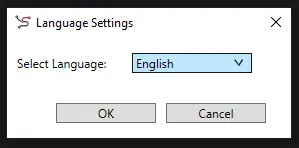
Click into the command prompt, type LANG_SP, and press Enter.

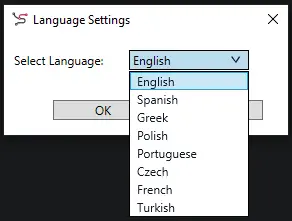
Select Your Language
When the dialog box appears, choose your preferred language to initialize the workspace.
Ribbon Restored Successfully
The SPCAD ribbon will automatically appear at the top of your screen.

Step-by-Step Video Walkthrough
Watch this quick demonstration to see the process in action:
Why a Manual Refresh?
SPCAD works across various platforms and supports multiple languages. It requires a specific instruction to initialize the interface correctly after a major update.
Selecting the language ensures all tools and commands are mapped accurately to your specific workspace environment.