How to Generate Your OpenTopography API key

How to Get Your OpenTopography API Key for SPCAD DEM Downloads
To download Digital Elevation Model (DEM) data into your CAD environment with the ‘Download DEM’ SPCAD tool, a unique OpenTopography API Key is mandatory for all users. This key authorizes your software to communicate securely with the service.
Therefore, to begin utilizing the ‘Download DEM’ tool immediately, please register and generate your key via the link below. Subsequently, you will simply paste this key into the SPCAD dialogue box to enable the direct download of global DEM data.
How to Generate Your API Key
First, you need to register and generate your key via the OpenTopography website (link provided below). Next, follow the on-screen instructions to create a new account if you don’t already have one. Existing users can simply log in with their credentials. After registration, an email will be sent to you containing an activation link. Once activated, you’ll be able to log in and request your unique API Key from the OpenTopography portal.
Integrating the Key with SPCAD
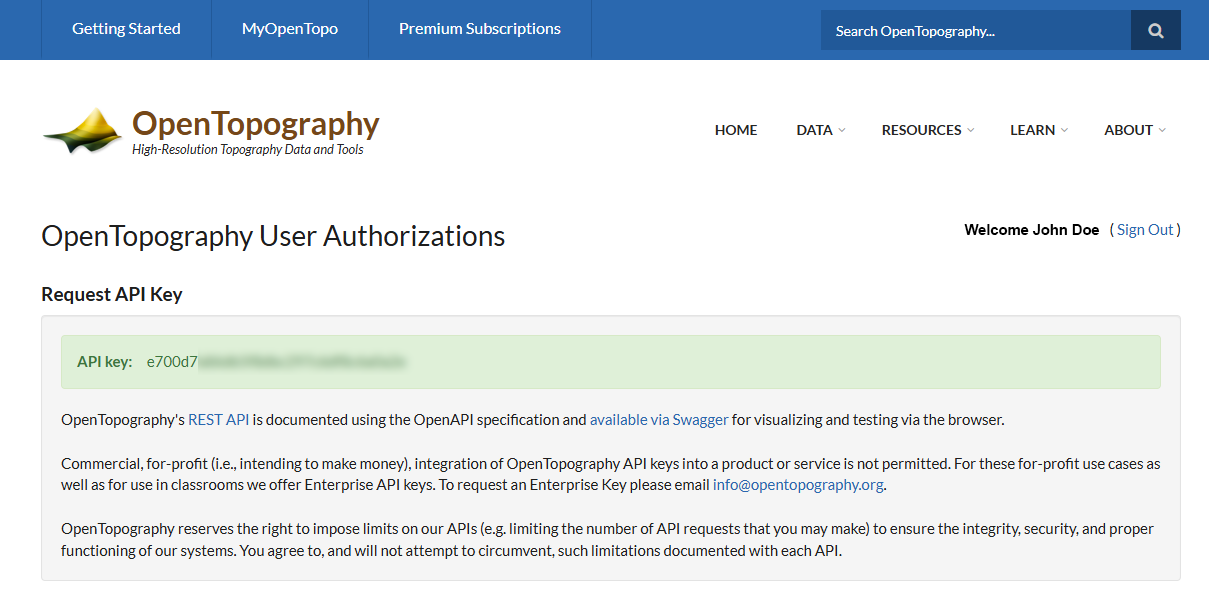
After obtaining your API Key, return to the SPCAD software. Open the ‘Download DEM’ tool and locate the dedicated field for the API Key. Then, paste your key into this field. Finally, click Test to verify that the key is working correctly. Once validated, your SPCAD tool will be authorized to access global DEM data, allowing you to start downloading terrain information for your projects immediately.
Detailed Guide: Step-by-Step API Key Generation
Step 1: Navigate to the API Key Request

Step 2: Log In or Create a New Account

New Users: If you do not have an account, click the “Create new account” link at the bottom of the page.
Step 3: Complete Registration, Verify Your Email, and Activate Account
If you are not an English speaker, you can switch the language using the dropdown menu in the top-left corner of the registration screen.


ORCID: Next, this field refers to a unique identifier for researchers. This field is OPTIONAL. If you do not have an ORCID ID, you can safely leave this field blank.
Once all required fields are filled, click SUBMIT. Then, you will see a confirmation message, indicating an email has been sent:

You will receive an email from “[email protected]” (OpenTopography). This email contains the link necessary to activate your new account.

• First, a direct, unique activation link that contains your activation key.
• Next, your registered User ID (Email) and Full Name.
• Finally, a notice stating the activation key will expire (typically in 7 days).
Click the activation link in this email to fully activate your account. After that, you can proceed to log in using the email and password you set up.
Step 4: Activate, Log In, and Get Your Key

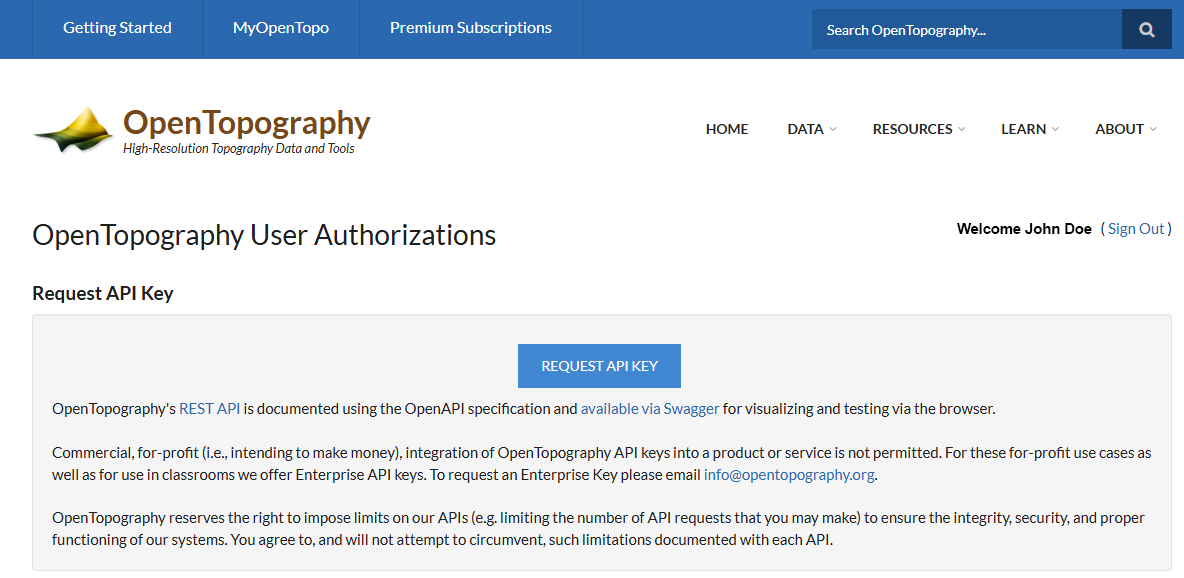
Click on the link that says “Get an API Key”. This will take you to the request page.

Step 5: Entering the Key in SPCAD
First, open the ‘Download DEM’ SPCAD tool (DNM_SP) within your CAD software.
Next, locate the dedicated field for the OpenTopography API Key.
Then, paste your key into this field.