How TIN Surfaces Work in SPCAD v26.0
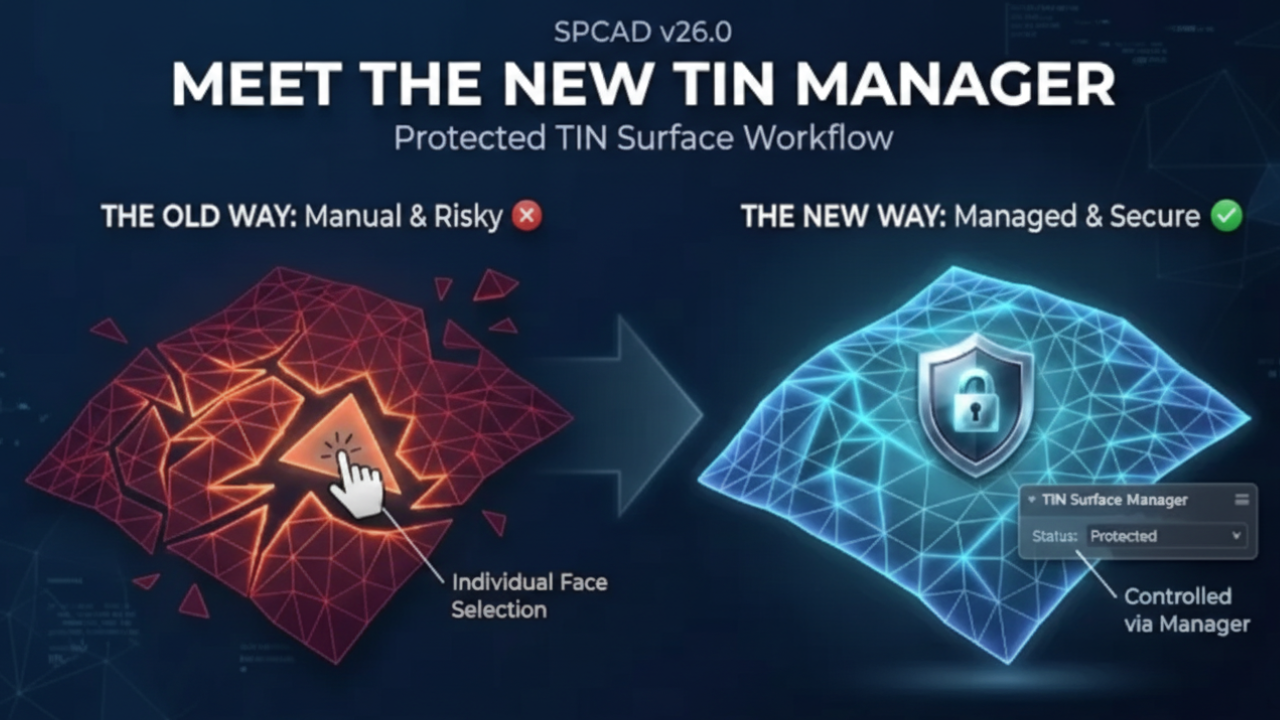
SPCAD v26.0: A Major Upgrade to How TIN Surfaces Work
(And Why You’ll Love It)
If you’ve been using SPCAD v25.x, you’ll notice something important the first time you work with TIN surfaces in SPCAD v26.0:
Your TIN still looks the same — but it behaves better, faster, and more reliably.
This update introduces a major improvement to the way SPCAD represents and manages TIN surfaces. The goal is simple:
- Better performance
- Cleaner workflows
- More control through the TIN Surface Manager
- Protected topology (no accidental triangle edits)
- New tools enabled by the new architecture
Let’s walk through what changed and what it means for you.
Before vs Now: What Changed in the Drawing
Earlier versions (SPCAD v25.0 / v25.1)
In earlier versions, TIN triangles were drawn as regular 3D Face objects stored directly in the drawing database. That means you could click and select them like normal entities (Image 1).
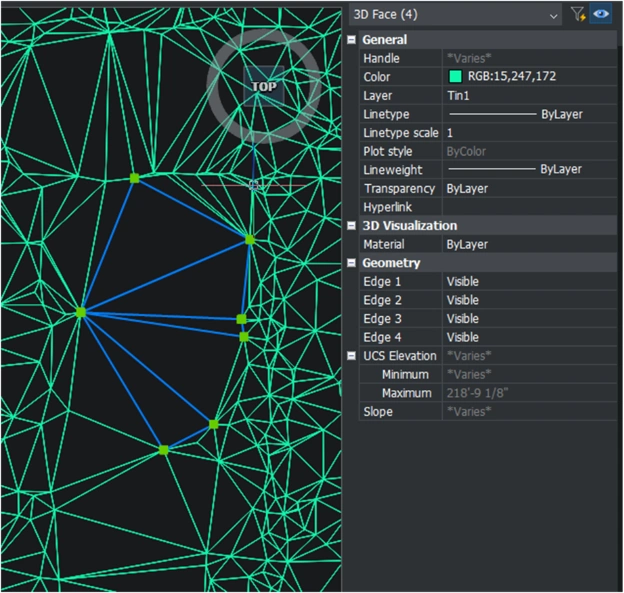 Image 1 — Legacy behavior: TIN triangles selectable as database objects (3D Faces).
SPCAD v26.0
In v26.0, the TIN triangles are displayed differently (Image 2). You’ll still see the full triangulated surface in your drawing, but:
- The triangles are not intended to be edited by selecting faces directly
- You manage TIN surfaces through the TIN Surface Manager, which is now the central control panel
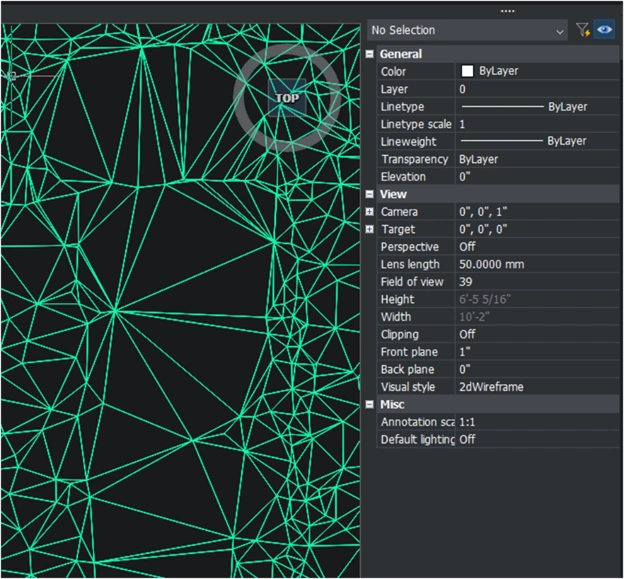 Image 2 — New behavior: triangles display in the drawing but are not edited by selecting faces.
This is a big shift, and it’s intentional.
Why This Change Is Better
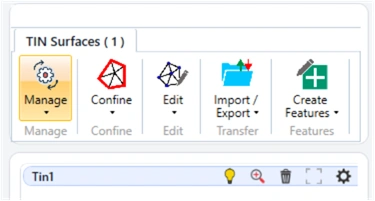 Turning surfaces ON/OFF is immediate and practical — especially when you manage multiple surfaces.
The TIN Surface Manager: Your New Control Center
The TIN Surface Manager (Image 3) is now the primary place to manage everything:
- Visibility (bulb toggle)
- Zoom to surface
- Delete surface
- Boundary visibility toggle
- Surface settings / symbology
- All editing and processing tools grouped by purpose
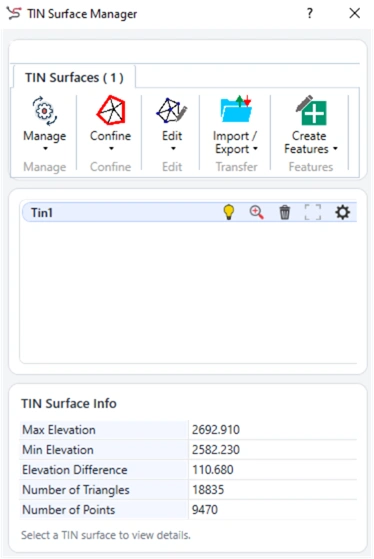 Image 3 — TIN Surface Manager in SPCAD v26.0. Each TIN includes quick controls.
Menu: Create TINs and Upgrade Legacy Surfaces
Manage Menu
The Manage menu includes tools to create TIN surfaces from Points, Contours, and 3D Faces, plus the tool to Upgrade Legacy TIN Surface created in SPCAD v25.x.
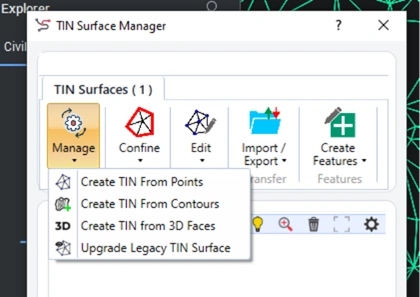 Image 4 — Manage menu: Create TIN from Points/Contours/3D Faces + Upgrade Legacy TIN Surface.
Confine Menu
The Confine menu now includes additional surface-aware tools such as Erode Hole and Smooth Surface, plus clip/merge/boundary-related workflows.
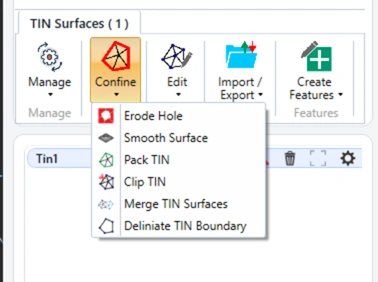 Image 5 — Confine menu: new tools like Erode and Smooth, plus core confine tools.
Edit Menu: Surface Editing (The Right Way)
Because triangles are no longer edited by selecting faces directly, editing is now done through controlled tools: Add Point, Add Breakline, Remove Point, Swap Edge, Remove Elevations, Remove Triangles, and Raise / Lower TIN.
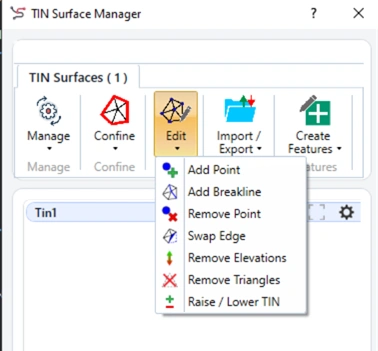 Image 6 — Edit menu: controlled tools for editing vertices, edges, and triangles.
Import/Export & New Features
A major improvement in v26.0 is the ability to save a TIN surface and bring it into another drawing using a new tool: Import from another drawing. You can also export to Point file, LandXML, or DEM formats.
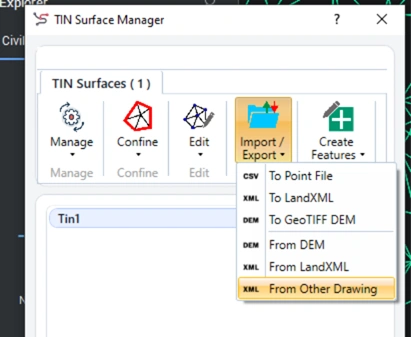 Image 7 — Import/Export menu: includes “From Other Drawing”.
New Tools in v26.0 Enabled by the New Workflow
SPCAD v26.0 introduces several powerful analysis and labeling tools: Insert Legend, Cross Section, Profile, Project to TIN Surface, Elevate Points, Water Drop / Surface Flow, Elevation Info, Slope Label, and Shortest Path.
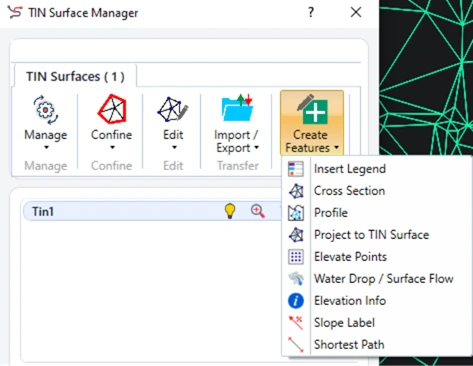 Image 8 — Create Features menu: new analysis and labeling tools in v26.0.
Visibility + Boundary + Settings: Faster and Per-TIN
In v26.0, visibility is instant using the bulb icon, boundary visibility has its own toggle, and each surface has its own Settings icon for per-TIN control of symbology.
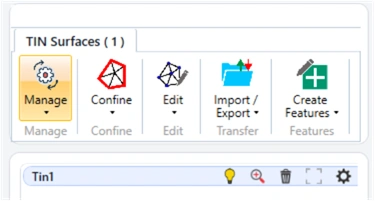 Image 9 — The per-surface controls (visibility, boundary, zoom, delete, settings).
Important Behavior Change
YES You still see the triangulated surface in the drawing
YES You can still use SPCAD tools on it
NO But you should not expect to select individual triangles and edit/delete them manually.
This is not a limitation — it’s a safeguard. Editing is now handled properly through Edit tools, so the surface remains valid and predictable.
Summary & FAQ
SPCAD v26.0 delivers a major TIN upgrade focused on real-world CAD performance and reliability. If you’ve used SPCAD TINs before, you’ll feel right at home — but with a much smoother experience.
Yes — use the Edit menu tools (Add/Remove points, breaklines, swap edges, remove triangles, raise/lower, etc.).
Because manual face edits can break the surface. v26.0 keeps the TIN stable by enforcing controlled edits.
Yes — use Import/Export → From Other Drawing.
Supported. Use Manage → Upgrade Legacy TIN Surface to give your older drawings the benefits of the new system.